


Splashtop Personal
4.512.38K Reviews
App Specs
- Version
- 3.8.0.25
- Updated On
- License
- Free
- Downloads
- 5,000,000+
- Developer
- Splashtop
- Categories
- Business
- Platform
- Android
Screenshots
 Analysis by AppCompare
I judge a remote desktop app less by how impressive it sounds than by what happens when I need one ordinary file and my computer is nowhere nearby. Splashtop Personal is aimed at that gap: it lets me reach a desktop from a mobile device, with the computer itself doing the work. That makes it useful for more than emergencies, but it also means the quality of the experience depends on the computer and connection at the other end.
What to expect from the connection
Remote access can feel quick when the desktop is responsive and the network is behaving, but it is not the same as using a phone app that runs locally. Every tap has to travel to the computer and the resulting screen has to come back. I find that distinction important: opening a document or checking a setting is a sensible task, while expecting every interaction to feel instant is not.
For a practical example, imagine I’m away from home and remember that a file I need is saved on my desktop. I can connect, locate it, and work with the desktop rather than having planned ahead by copying it to the phone. That convenience is the app’s real strength. It is a fallback for access, not a reason to stop keeping important files organized or available through other means.
Where a remote desktop helps most
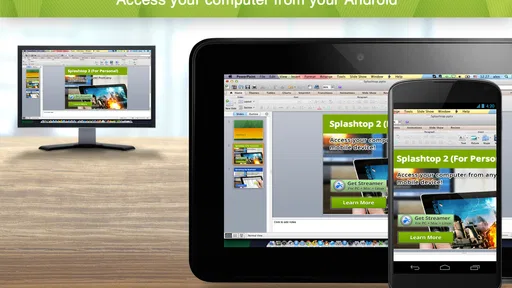
The setup requires Splashtop Streamer on the home computer and Splashtop Personal on the mobile device. Once the two are linked, I can use the phone to reach the computer instead of relying on a separate copy of its contents. This is handy for retrieving a forgotten attachment, checking something in a desktop program, or making a small change while I’m away.
It also suits people who already have a particular desktop workflow they want to continue from a distance. A specialist program, a familiar folder structure, or a file that has not been moved to the cloud can all make remote access more convenient than setting up a new mobile workflow. I would still treat a phone as a compact control surface rather than a full replacement for a monitor and keyboard.
Speed under heavier use
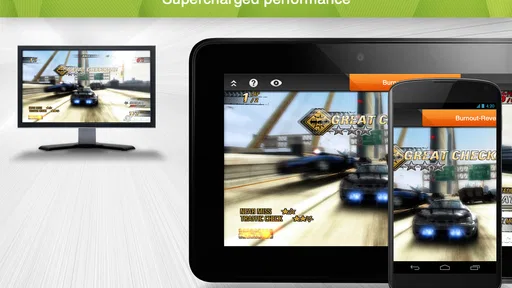
Let’s talk performance because, let’s be honest, nobody wants to deal with laggy apps. The experience can be impressively responsive when conditions are favorable, and the app supports streaming video and audio from the desktop. That opens the door to entertainment as well as work, though streaming a movie or playing a game puts more pressure on the connection than opening a file or adjusting a setting.
That difference matters in real use. If I’m watching a video, small interruptions are more noticeable than they are while reading a document. Games and tasks that need precise timing are even less forgiving: the display may look clear, yet a delay between touch and response can still make control feel awkward. I’d try those uses on the networks and devices I expect to rely on before counting on them during travel.
Worth Reading Before You Choose

Flipboard Shows What News Apps Must Do Beyond the Feed

Switching to Android Auto Means Rethinking Your Driving Routine

Google Calendar Makes a Crowded Week Easier to Manage

Ludo King Makes the Most of the Minutes Between Plans

Baby Panda World Brings Quick Play to Modern Phones, but Its Game Library Feels Busy

ESPN’s Live Game View Makes Following Close Games Easier
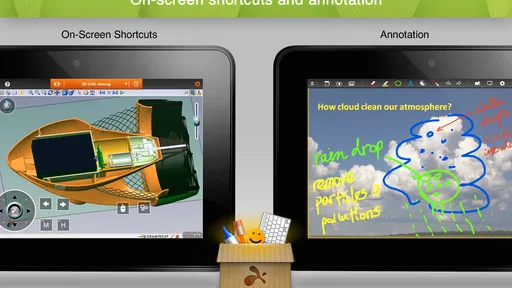
The touch controls provide mouse-like actions, including right-clicking, scrolling, and access to function keys. Those options are more useful than tapping the screen as if every desktop control were designed for a finger. For longer sessions, though, a phone’s display and touch input remain limiting; I’d use a larger screen or physical input when accuracy and comfort matter more than quick access.
Reliability and recovery in everyday use
A remote session depends on the desktop being available as well as the mobile device having a usable connection. If the computer is off, disconnected, or unable to respond, the phone cannot substitute for it. Before leaving home, I’d check that the computer is ready for the kind of access I may need, rather than discovering a preventable problem while away.
When a session feels slow, I would first separate a network problem from a desktop problem. A busy computer can take longer to respond even if the phone connection is fine, and a weak connection can make a capable desktop feel sluggish. Retrying after the connection improves or closing unnecessary work on the computer are practical first steps; remote access is not a cure for either bottleneck.
Controls, privacy, and the learning curve
The interface is clean and the basic workflow is approachable, but using a desktop through a phone still takes a little adjustment. I find it helps to pause before tapping small buttons and use the mouse-style controls deliberately, especially when a desktop program has menus packed close together. The ability to scroll and right-click makes the experience more capable, but it does not make every desktop interface comfortable on a small screen.
Splashtop says the connection uses AES 256-bit encryption and TLS, and offers additional security such as two-step verification. I consider those useful protections for an app that can expose a computer remotely. They are not a reason to ignore account security or leave a shared device accessible without thought; I’d choose a strong, unique password and enable the extra verification option where available.
In practical terms, I would not choose this as my only plan for important files. A remote connection can fail at the moment I need it, so keeping essential documents backed up or available through a separate method is sensible. That is not a knock on Splashtop so much as a basic trade-off of depending on a live connection to another machine.
How it compares with other ways to reach a computer
Compared with cloud storage, remote desktop access can reach files and programs that remain on the home computer, without first changing how they are stored. Cloud storage is usually the simpler choice if I only need documents on multiple devices, especially when offline access matters. Splashtop is more appealing when I need the actual desktop environment, not just a folder of synchronized files.
Compared with carrying a laptop, a phone connection is lighter and convenient for quick checks, but it is not as comfortable for extended work. A laptop also avoids some of the fine-control problems that come with touching a desktop interface on a small screen. I see the app as a useful middle option: more capable than remote file access alone, less suitable than sitting at the computer for hours.
It is a particularly good fit for someone who keeps a home desktop running and occasionally needs to reach a program, file, or media library while away. It is less compelling for someone who wants a dependable way to work offline, needs precise input all day, or only wants to sync a few documents. In those cases, a local copy, cloud service, or laptop may be a better match.
Setting Up Splashtop Personal
First things first, getting started with Splashtop Personal is straightforward. You’ll need to install the Splashtop Streamer on your home computer and the Splashtop Personal app on your mobile device. The setup is a breeze, and the app provides clear instructions at every step. Within minutes, you’ll have your devices linked and ready to go.
The app works seamlessly on both Android and iOS, so whether you’re Team Android or a die-hard iPhone user, you’re covered. I installed it on my Android phone, and the connection was stable and fast, even on a mediocre network. It’s like having your computer in your pocket—minus the weight!
Performance and Features
Let’s talk performance because, let’s be honest, nobody wants to deal with laggy apps. Splashtop is impressively responsive. The app delivers high-definition video and audio streaming, so you can watch videos, play games, or even use software that requires precision, like Photoshop, without a hitch.
One of the standout features is its intuitive touch controls. The app mimics a mouse and keyboard setup, so you’re not just poking at the screen aimlessly. You can right-click, scroll, and even access function keys, which makes it feel like you’re sitting right in front of your desktop.
Security and Privacy
Now, onto something crucial—security. Splashtop takes this seriously. The app uses AES 256-bit encryption and TLS to ensure your connection is secure. It’s like having a digital fortress around your data. Plus, you can set up additional layers of security, like two-step verification, for added peace of mind.
Privacy is another area where Splashtop excels. Your data is not stored on their servers, so you can rest easy knowing your information stays between you and your devices.
User Experience
The user interface is clean and user-friendly, which is perfect for someone like me who values simplicity. Everything is where you’d expect it to be, making navigation intuitive even for tech novices. The app also provides a help section with FAQs and support if you ever find yourself scratching your head.
Using Splashtop Personal feels like second nature after a while. Whether you're accessing files, running apps, or simply managing desktop tasks, the app handles everything with finesse.
Cost, fit, and device requirements
Splashtop is a free business-category app from Splashtop, with in-app purchases ranging from under a dollar to just under seventeen dollars per item. I’d check the purchase options against the way I plan to use it before assuming every kind of access is included at no cost. The app is rated for Everyone, has an average rating of 4.5 from around 111,000 ratings, and has been installed over five million times.
The current version is 3.7.4.23 and it requires Android 5.0 or later. That makes the operating-system threshold fairly accessible, but the phone is only one part of the setup: the desktop must also be ready, and both ends need a working route to the internet. If I were setting it up for a less technical family member, I’d test a full connection while still at home and make sure they can recognize the computer they intend to access.
Splashtop Personal was released on August 7, 2012, and its long-running presence is reassuring in a practical sense, though longevity alone does not promise a perfect session on every network. Its rating and broad adoption suggest many people find the basic idea useful; I would still judge it by my own desktop, phone, and typical connection rather than assuming another person’s smooth experience guarantees mine.
My performance verdict
My overall view is that Splashtop Personal is most valuable as a convenient bridge to a computer I already use. It can save a trip back to the desk for a quick task, and it gives a phone access to a fuller desktop environment than file syncing alone. I would not make it my first choice for long, precision-heavy sessions or for anything that must work without a reliable connection.
For a good first test, I’d connect at home, open the desktop tasks I’m most likely to need, and try them from the phone before relying on the setup elsewhere. That reveals whether the controls suit me and whether the connection feels responsive enough for my own routine. With those expectations, it is a useful remote-access tool rather than magic: a practical way to reach a ready computer when I’m away, with the usual limits of a small screen and a live connection.
Final Thoughts
All in all, Splashtop Personal is a powerhouse when it comes to remote access apps. It’s fast, reliable, and remarkably easy to use. Whether you need to access work files or just want to stream your favorite shows from your home PC, Splashtop has got your back.
If you’re in the market for a robust remote desktop solution, give Splashtop Personal a whirl. It might just become your new best friend for remote access needs.
Pros
- Easy setup and user-friendly interface.
- High-quality audio and video streaming.
- Supports multiple devices simultaneously.
- Strong security with encrypted connections.
- Affordable pricing for personal use.
Cons
- Requires stable internet for optimal performance.
- Limited features in the free version.
- Not compatible with all devices.
- Occasional lag in high-traffic times.
- Needs additional setup for remote printing.
FAQs for Splashtop Personal
What is Splashtop Personal, and how does it work?
Splashtop Personal is a remote access app that allows users to connect to their computers from a smartphone or tablet. It works by establishing a secure connection over the internet, enabling you to access files, applications, and even stream media directly from your desktop, providing a seamless remote experience.
Is Splashtop Personal free to use, or are there any costs involved?
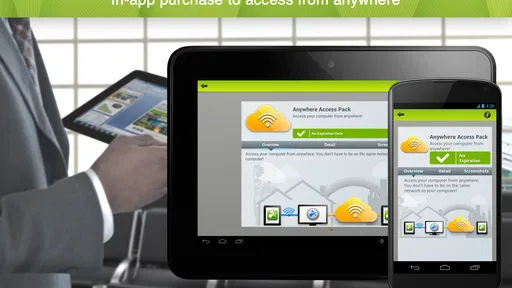
Splashtop Personal offers a free version with basic features for personal use. However, some advanced functionalities, such as accessing your computer from outside your home network, require a subscription. It's important to review the pricing plans to choose the one that fits your needs best before downloading.
Which devices and operating systems are compatible with Splashtop Personal?
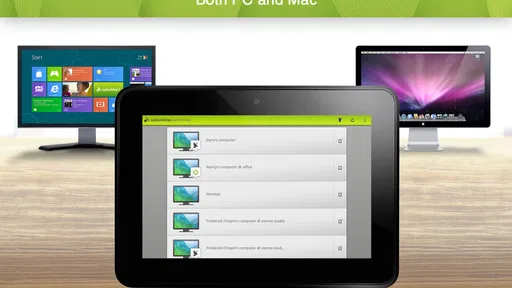
Splashtop Personal is compatible with a wide range of devices, including iOS and Android smartphones and tablets. It can connect to Windows and macOS computers. Ensure your devices meet the app’s system requirements for smooth performance and a hassle-free remote access experience.
How secure is Splashtop Personal for remote access?
Security is a priority for Splashtop Personal. The app uses industry-standard encryption to protect your data during remote sessions. Additionally, it requires authentication to access your devices. Always keep your app updated to benefit from the latest security enhancements and features.
Can I use Splashtop Personal for business purposes?
Splashtop Personal is designed primarily for personal use. If you need remote access solutions for business or commercial purposes, consider using Splashtop Business Access. It offers more robust features and security measures tailored to professional environments, ensuring compliance with business standards.


